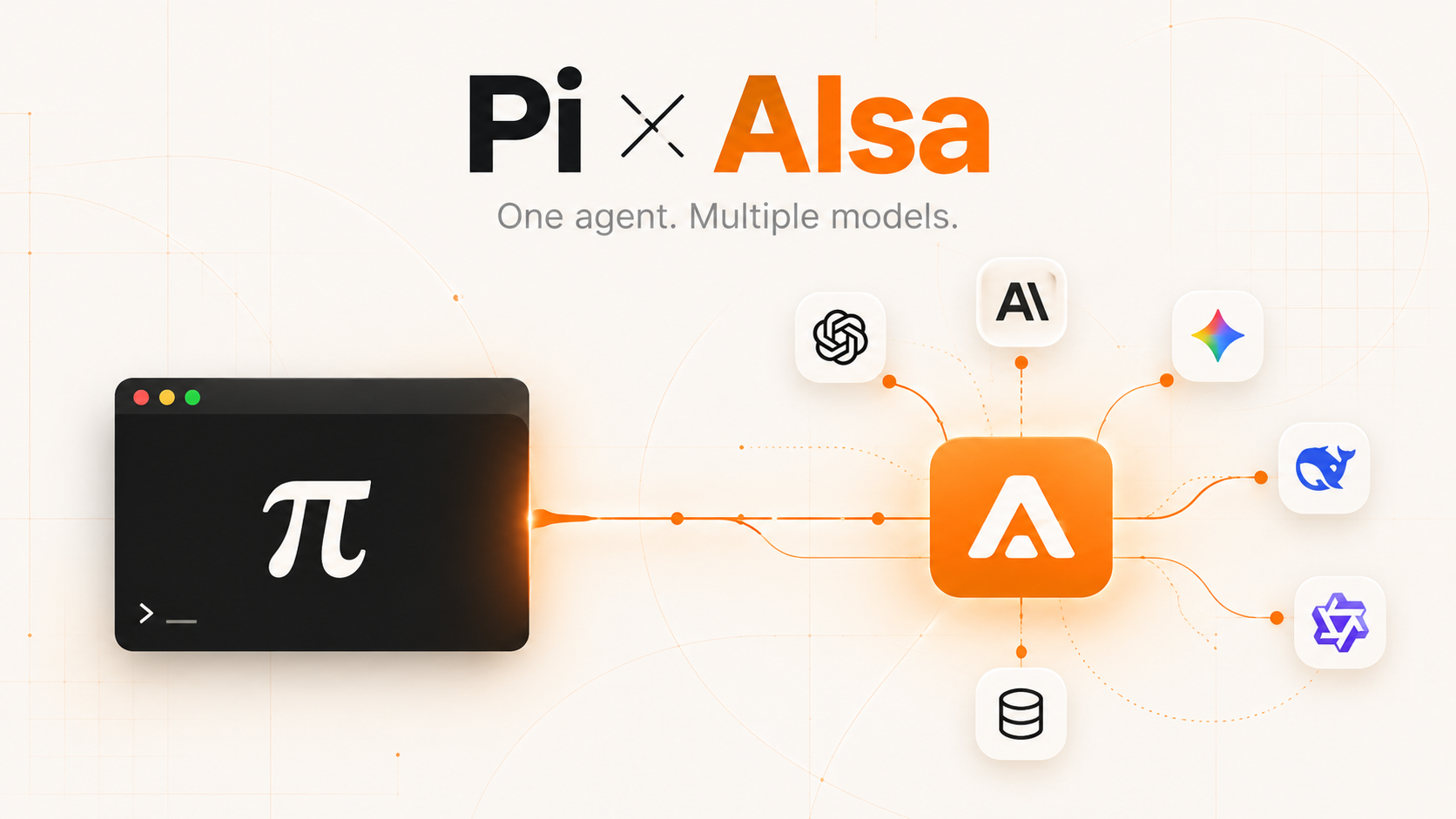
To use the Pi coding agent with AIsa, add an AIsa provider to ~/.pi/agent/models.json. You can then switch models from the terminal and, if you want search and data tools, connect AIsa MCP.
Pi is an open-source terminal coding agent. AIsa gives you one API key and one bill for models from several providers. This guide covers installation, model configuration, model switching, MCP setup and cost control.
Already using Pi? Skip to Step 2. Only need data tools? Skip to Step 4.
Why use Pi with a pay-as-you-go LLM gateway?
Over the past year I kept switching AI tools. One model was better at code, another at reasoning, a third was cheap and fast. Each tool came with its own subscription, quota and workflow, and that caused three problems:
- Usage was uneven. In busy weeks I hit subscription limits; in quiet weeks I paid the same monthly fee for a plan I barely used.
- Trying a model from another provider meant another account and another billing setup.
- The tool decided how I worked, instead of the other way around.
How Pi and AIsa work together
Many coding tools bundle the agent with a model subscription. An open-source agent separates the two: the tool is free and yours, and the only open question is how to pay for models. For me, pay-as-you-go fits best:
- Coding is bursty. I might send hundreds of requests a day during a sprint and none during a week of travel. Cost follows actual use.
- Not every task needs a frontier model. Architecture work deserves one; bulk rewrites and formatting run fine on something cheaper. I can pick a model that is good enough for each task.
- Trying a new model means adding one entry to a config file and testing it on a familiar task.
So the setup is simple. Pi runs the coding workflow in the terminal. AIsa routes model and data requests and records usage against one balance. Model calls work without MCP; MCP adds external tools when you need them.
Pi features: model switching, extensions and MCP
- Small core, extensible. Workflows such as sub-agents and plan mode come from extensions. See the Pi project overview.
- Any compatible provider.
models.jsonaccepts OpenAI-, Anthropic- and Google-compatible endpoints, as long as the endpoint supports the model and protocol you choose. In a session,/modelsearches and switches models,Ctrl+Pcycles through them, and/thinkingchanges reasoning depth. You can design with Claude, then switch to DeepSeek for a batch rewrite without leaving the session. - Built-in MCP client. With codemode, the model writes a short script to batch, filter and combine tool calls instead of pasting raw output into the context. Smaller tool results mean less context in later requests.
- Shareable packages. Extensions, skills, prompt templates and themes can be bundled as Pi packages and shared through npm or git. Pi is MIT-licensed.
AIsa features: one API key, model protocols and usage billing
- One key.
AISA_API_KEYworks with supported Claude, GPT, Gemini, DeepSeek, Qwen and other models. Exact model IDs and endpoints are in the AIsa model catalog. - Usage-based billing. Model charges follow token usage, with different input and output rates per model. Balance, rate limits and availability still apply. Compare rates in the model marketplace, check charges in the console, and see AIsa pricing.
- Native protocols. AIsa exposes OpenAI Completions/Responses, Anthropic Messages and Google Generative AI–style endpoints. In Pi, pick a protocol that AIsa supports for that model. Reasoning, vision and tool calling depend on the model and route, not on protocol compatibility alone.
- APIs as well as models. Through AIsa's MCP server, your agent can find and call free or paid APIs for web search, financial data, social media, SEO, sales, mail and more. Data APIs are priced per request or metered, and some require a plan. Execution calls accept
max_price_usd, which caps the API call but not the LLM tokens used to plan or summarize. See the MCP guide.
How to connect Pi agent to AIsa
You need a terminal, Pi, an AIsa API key and enough balance for paid requests. The Pi installer can install Node.js for you; installing Pi directly with npm requires Node.js 22.19 or newer.
We'll set up one coding model first, then add MCP tools.
Step 1: Install Pi and get an AIsa key
On macOS or Linux, use the official installer:
curl -fsSL https://pi.dev/install.sh | sh
In the AIsa console, create an account, generate an API key and check your balance. Then export the key, for example in ~/.zshrc or ~/.bashrc:
export AISA_API_KEY="sk-xxxxxxxxxxxxxxxx"
Don't hard-code the key in config files. Both models.json and mcp.json accept environment references such as $AISA_API_KEY or ${AISA_API_KEY}.
Step 2: Configure models.json for AIsa
Create ~/.pi/agent if it doesn't exist, then edit models.json. If the file already has providers, merge the aisa entry into providers.
mkdir -p ~/.pi/agent
Start with one coding model over OpenAI-compatible chat completions:
{
  "providers": {
    "aisa": {
      "baseUrl": "https://api.aisa.one/v1",
      "api": "openai-completions",
      "apiKey": "$AISA_API_KEY",
      "models": [
        {
          "id": "qwen3-coder-plus",
          "name": "Qwen Coder via AIsa",
          "input": ["text"],
          "contextWindow": 1000000,
          "maxTokens": 8192
        }
      ]
    }
  }
}
maxTokens: 8192 is an output cap I chose, not the model's maximum. Keep context and capability values in line with the AIsa model catalog.
To add more models, add entries to models and override api and baseUrl where needed:
| Route | Pi api | baseUrl | Example model ID |
|---|---|---|---|
| Chat completions | openai-completions | https://api.aisa.one/v1 | qwen3-coder-plus |
| Anthropic Messages | anthropic-messages | https://api.aisa.one | claude-opus-4-8 |
| OpenAI Responses | openai-responses | https://api.aisa.one/v1 | gpt-5.5 |
| Gemini GenerateContent | google-generative-ai | https://api.aisa.one/v1beta | gemini-3.5-flash |
The Gemini route also needs an Authorization header set to Bearer $AISA_API_KEY. Only set reasoning, input modalities and compatibility flags when the route supports them. For details, see Pi's model setup guide.
Save the file and start Pi from your project directory:
cd /path/to/project
pi
Open /model to reload the configuration and search for aisa. Press Ctrl+S on a model to make it the default. Try a small task first:
Summarize the purpose of this repository from its README.
If you get a reply, model access works. Check the request and its charge in the AIsa console before starting a longer task.
Step 3: Pick models by task
With this many models, choosing matters more than adding. Not every task needs the most expensive one. Here is a shortlist to compare on your own work:
| Task | Models to compare | What to check |
|---|---|---|
| Architecture and complex reasoning | Claude / GPT | Quality on a difficult task |
| Code review and a second opinion | A different model from the one that wrote the code | Missed issues and actionable feedback |
| Daily coding and bulk edits | DeepSeek / Qwen Coder | Cost per completed task and retry rate |
| Quick text questions | Gemini Flash or another fast model | Latency and current token rates |
These are starting points, not benchmarks or a price ranking.
Use /scoped-models to select them, and Ctrl+P will cycle only through that set. With /thinking, the same model can switch between quick replies and deeper reasoning. Use the thinking levels the model supports, and compare actual usage on simple and complex tasks.
Step 4: Connect AIsa MCP for search and data tools
You don't need MCP to code with AIsa models. Add it when you want Pi to search or pull external data:
pi mcp add aisa --url https://mcp.aisa.one/mcp --bearer-token-env-var AISA_API_KEY
pi mcp list
Or edit ~/.pi/agent/mcp.json directly:
{
  "mcpServers": {
    "aisa": {
      "url": "https://mcp.aisa.one/mcp",
      "headers": {
        "Authorization": "Bearer ${AISA_API_KEY}"
      },
      "description": "AIsa capability layer: search/discover and call paid/free APIs with max_price_usd caps across web, finance, social, SEO, sales, mail, and more."
    }
  }
}
Write the description carefully. Pi puts it in the system prompt, and the model uses it to decide when to call these tools. AIsa's tools are exposed through codemode by default: the model writes a short JavaScript snippet to discover, call and filter APIs, and only the useful part of the result comes back. If you change the MCP config while Pi is running, run /reload, then /mcp to check the connection. See Pi MCP configuration.
Now you can ask:
"Find APIs for today's BTC and NVDA prices and related news. Show the exact calls and quotes first. After I approve, keep each execution call under $0.05 and total data API spend under $0.15, then write a brief with sources."
The agent finds the tools and checks their schemas and prices before running anything. The per-call cap, the total task budget and model token charges are three separate controls.
Frequently asked questions about Pi + AIsa
Is Pi free? Does AIsa require a subscription?
Pi is open source and free to install. AIsa offers pay-as-you-go model access and optional plans. Paid model requests use your balance, and some data services require a separate plan. Check current pricing before you choose.
Is pay-as-you-go always cheaper?
It depends on your usage. Compare the subscription fee with input tokens × input rate + output tokens × output rate, plus any cache or data API charges. Long contexts, retries and long outputs all add to the cost.
Can I switch between Claude, GPT, and DeepSeek in Pi?
Yes, once you add supported model entries. Use /model to pick one, and /scoped-models to limit which models Ctrl+P cycles through.
Why does a model or MCP connection fail?
If a model is missing, check the JSON syntax and whether AISA_API_KEY is set in the shell that starts Pi. If requests are rejected, check the exact model ID, protocol, balance and limits. For MCP, run pi mcp list; in a running session, use /reload and /mcp.
Start your first Pi + AIsa session
Configure one model, run a small task and check what it cost. Add a second model or MCP tools when your workflow needs them.
Create an API key in the AIsa console and follow the model configuration above.
Related documentation