Adding Multi-Source Search to Dify with AIsa Search
A practical guide to building a source-aware research agent with web, X/Twitter, YouTube, and scholarly search in Dify.
Large language models are excellent at synthesizing information, but their built-in knowledge is not always current, complete, or traceable. Ask an LLM about a recent product launch, a fast-moving technical debate, or the latest research on a niche topic, and it may answer confidently without giving you evidence you can verify.
Search tools help close that gap. Instead of relying only on model memory, a Dify application can retrieve current information at runtime and pass the results to the model for analysis.
AIsa Search is a Dify tool plugin that provides five read-only retrieval capabilities through a single integration:
- Web Search for current public web results
- Web Extract for readable content from selected pages
- X/Twitter Search for public posts and ongoing discussions
- YouTube Search for relevant videos and channels
- Scholar Search for papers and academic evidence
In this tutorial, we will install the plugin, configure an AIsa API key, build a multi-source research agent, and explore a more deterministic Workflow design for production use.
What We Are Building
By the end of the tutorial, you will have a Dify application that can accept a research question such as:
What were the most important developments in AI coding agents during the last 30 days?
The application can search multiple source types, distinguish reported facts from community opinions, and generate a structured brief with direct links to the underlying material.
This pattern is useful for:
- Technology and market research
- Competitor monitoring
- Product launch analysis
- Social sentiment discovery
- Video content research
- Literature reviews
- Source-backed newsletters and internal reports
Prerequisites
Before you begin, make sure you have:
- Access to a Dify workspace
- A language model configured in Dify
- An AIsa API key from the AIsa Console
The plugin source lists Python 3.12 plugin support as a requirement for self-hosted Dify installations. Dify Cloud users generally do not need to manage the plugin runtime directly. For implementation details, see the AIsa Search source repository.
Note: Menu labels can vary slightly between Dify versions, but the overall installation and configuration flow remains the same.
Step 1: Install AIsa Search
Open the plugin marketplace from your Dify workspace and navigate to the AIsa Search marketplace page.
Click Install and select the workspace where you want to use the plugin.
After installation, open the plugin's provider configuration and enter your AIsa API key. Dify stores the value as a secret credential. According to the plugin documentation, the key is sent to https://api.aisa.one as a bearer credential and is not included in tool output.
Once authentication succeeds, Dify should expose the following tools:
| Tool | Best suited for |
|---|---|
| Web Search | News, documentation, product pages, and current web information |
| Web Extract | Reading the contents of one to three selected public pages |
| X/Twitter Search | Recent discussions, reactions, opinions, and public posts |
| YouTube Search | Videos, conference talks, tutorials, reviews, and channels |
| Scholar Search | Papers, academic literature, and research evidence |
Step 2: Create a Research Agent
From Dify Studio, create a new Agent application. Choose a model that supports tool calling, then add the AIsa Search tools to the agent.
For the first version, enable these four tools:
- Web Search
- X/Twitter Search
- YouTube Search
- Scholar Search
You can also enable Web Extract, but it is helpful to think of it as a second-stage tool. Search finds candidate sources; extraction reads selected sources in greater depth.
Web Extract accepts one to three public HTTP or HTTPS URLs. For safety, it rejects local addresses, private-network addresses, credential-bearing URLs, and non-HTTP protocols. The plugin also caps any AIsa API response at 5 MiB.
Step 3: Give the Agent a Research Policy
Tool access alone is not enough. The model also needs instructions for deciding which source types to use and how to present the evidence.
Add the following system prompt to the Agent:
You are a source-aware research assistant.

When the user asks a question that requires recent information, market signals,
product comparisons, technical evidence, or fact-checking, choose the most
appropriate AIsa Search tools.

Tool policy:
1. Use Web Search for current reporting, documentation, and public web sources.
2. Use X/Twitter Search to identify recent public discussion and contrasting views.
3. Use YouTube Search for relevant videos, talks, demonstrations, and reviews.
4. Use Scholar Search when academic evidence or published research is relevant.
5. Use Web Extract when a selected web result needs closer reading.

Response policy:
- Separate verified facts, reported claims, opinions, and your own synthesis.
- Do not invent information that is absent from the retrieved results.
- Preserve direct source links whenever the tool returns them.
- Explain meaningful disagreement between sources.
- State clearly when a source category returns no useful results or a tool fails.
- Organize the final answer into findings, evidence, limitations, and sources.
This prompt does three important things. It gives each tool a clear role, tells the model not to hide retrieval failures, and requires source links in the final answer.
Step 4: Run a Multi-Source Test
Use a prompt that actually benefits from multiple source types. A purely factual question such as “What is HTTP?” will not demonstrate the value of the integration.
Try this instead:
Research the most important developments in AI coding agents during the last
30 days.

Use web sources, X/Twitter discussions, YouTube videos, and scholarly sources
where relevant. Produce a concise research brief containing:

1. Three major trends
2. Evidence supporting each trend
3. Areas of disagreement or uncertainty
4. Projects worth watching
5. Direct links to the sources used

Clearly distinguish factual reporting from community opinion.
During the run, inspect Dify's tool-call trace rather than looking only at the final response. The trace helps you answer several important questions:
- Did the model select appropriate tools?
- Were the search queries specific enough?
- Did it use more than one source category?
- Were returned links preserved in the final report?
- Did the final text introduce claims that were not present in the tool output?
Step 5: Improve Retrieval Quality
The quality of a research agent depends heavily on the queries it generates. Broad queries often produce generic results. Encourage the Agent to break complex requests into narrower searches.
For example, instead of searching for:
AI agentsit can issue targeted searches such as:
AI coding agent product launches July 2026
AI coding agent benchmark reliability
developer reactions to autonomous coding agents
For X/Twitter, use focused expressions that match the user's topic and time horizon. For Scholar Search, prefer research concepts, methods, or paper topics over conversational questions.
You can reinforce this behavior by adding one sentence to the system prompt:
For broad research requests, generate several focused queries instead of using
one generic query across every tool.
Step 6: Use Web Extract for Deeper Reading
Search snippets are useful for discovery, but they may not contain enough context for careful analysis. When a web result appears especially important, Web Extract can retrieve readable page content for closer inspection.
A robust two-stage pattern is:
- Search the web for candidate sources.
- Select up to three high-value public URLs.
- Extract their content.
- Ask the LLM to compare claims, dates, evidence, and limitations.
This is particularly valuable for product documentation, launch announcements, long-form analysis, and technical articles.
Do not instruct the model to extract every search result. That increases latency and context usage without necessarily improving the answer. Extraction should be selective.
Building the Same System as a Workflow
An Agent is convenient because the model decides which tool to call. However, that autonomy also makes execution less predictable. If you need the same set of sources and the same output format every time, build a Dify Workflow instead.
A basic research Workflow can use the following stages:
- Start — Accept the topic, time range, and desired report format.
- Search tools — Call Web Search, X/Twitter Search, YouTube Search, and Scholar Search.
- Optional extraction — Read selected web pages when deeper evidence is required.
- LLM synthesis — Combine results, remove duplicates, and label source types.
- End — Return a structured report with direct links. Built as a Chatflow, this is an Answer node instead.
The search branches can be run independently if your Dify version and Workflow design support parallel execution. Their outputs can then be merged into a single LLM node.
One practical detail that stage list hides: the AIsa Search tools return the raw AIsa API envelope as JSON, not a pre-formatted summary. A single X/Twitter response can carry tens of thousands of tokens of author objects, card metadata, and image color palettes. Put a Code node between the search tool and the LLM to keep only what matters — post text, author, engagement counts, and URL. It cuts cost and keeps the synthesis prompt focused.
Two things worth knowing when wiring this up:
- Pass tool output to the LLM through a prompt variable, not the Context field. Context expects Knowledge Retrieval segments and will reject a tool envelope with an
Invalid context structureerror. - Give the LLM node a User message, not only a System message. Some models return an empty string when no user turn is present.
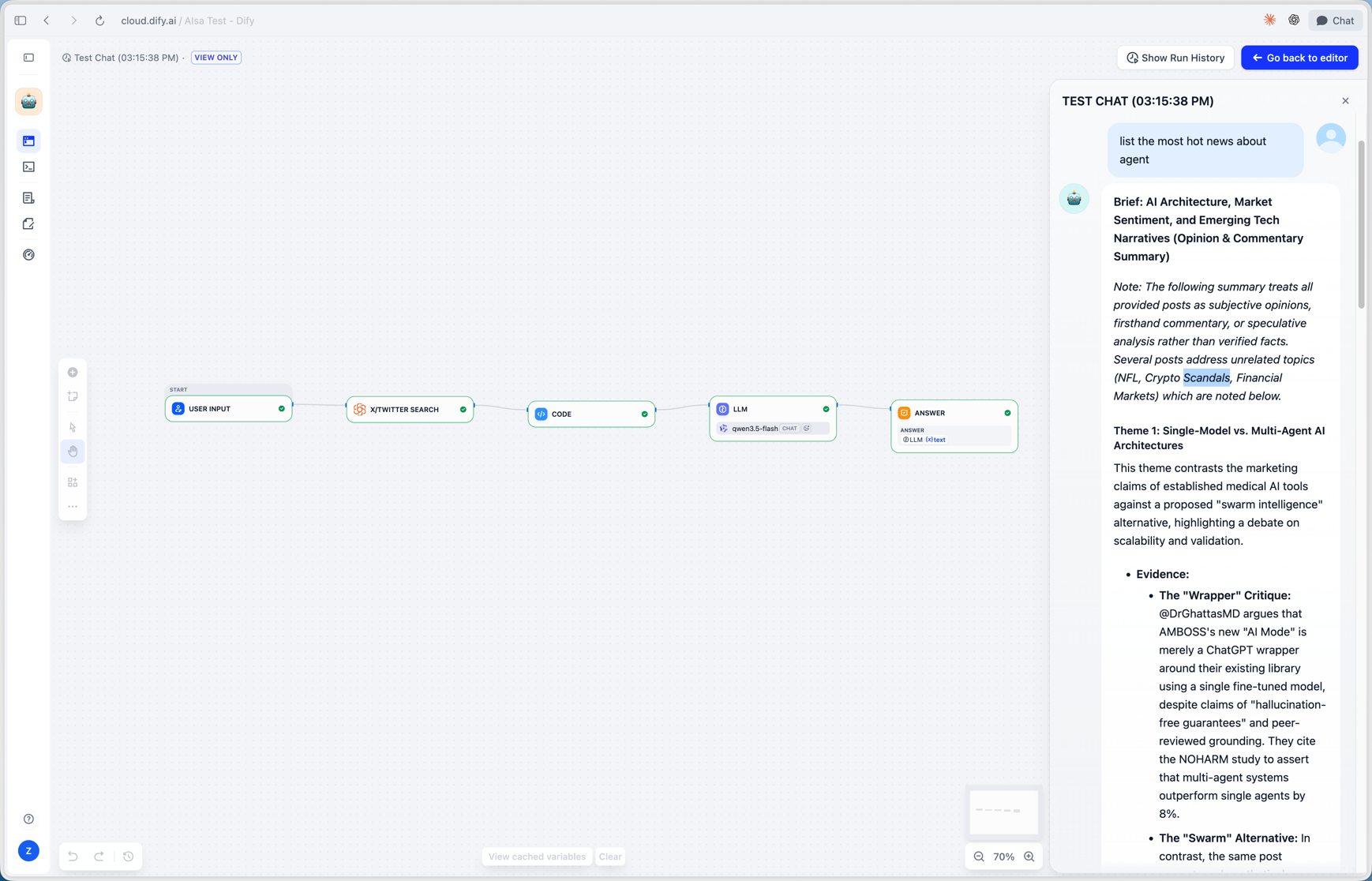
A single-source run, built here as a Chatflow: the search tool retrieves posts, a Code node trims the payload, and the LLM returns a themed brief that labels every claim as opinion or commentary. Add the remaining search branches the same way.
A useful synthesis prompt is:
Create a source-backed research brief from the retrieved material.

Requirements:
- Group related findings into themes.
- Deduplicate repeated claims and URLs.
- Label evidence by source type: Web, X/Twitter, YouTube, or Scholar.
- Treat social posts as opinion or firsthand commentary unless independently verified.
- Prefer original documentation and primary sources when available.
- Identify contradictions, uncertainty, and missing evidence.
- End with a clean list of cited URLs.

Research topic:
{{topic}}

Web results:
{{web_search_output}}

X/Twitter results:
{{twitter_search_output}}

YouTube results:
{{youtube_search_output}}

Scholar results:
{{scholar_search_output}}
Variable syntax and node names should be adjusted to match your Workflow.
Agent or Workflow?
Choose an Agent when:
- Users ask open-ended questions.
- The required sources vary by request.
- You want the model to decide when deeper extraction is necessary.
- Some variation between runs is acceptable.
Choose a Workflow when:
- Every run must check the same source categories.
- You need a consistent report structure.
- The output feeds another system or scheduled process.
- You want clearer control over latency, cost, and failure handling.
A practical production design often combines both approaches: a Workflow handles deterministic retrieval and formatting, while an LLM performs bounded analysis inside the pipeline.
Validation Checklist
Before publishing or deploying the application, test it with several kinds of questions:
- A recent news or product question
- A topic dominated by social discussion
- A video-oriented research request
- A question requiring academic evidence
- A request containing an invalid or private URL for Web Extract
- A query that is unlikely to return useful results
For each run, verify that:
- Credentials never appear in tool or model output.
- Links are valid and correspond to the claims they support.
- Social posts are not presented as verified facts.
- Academic sources are described accurately.
- Empty results and tool errors are visible to the user.
- The model does not fabricate citations.
- The answer states meaningful limitations.
Common Problems and Fixes
The Agent does not call a search tool
Make sure the selected model supports tool calling and that the tools are enabled for the Agent. Strengthen the system prompt so that recent or verifiable questions explicitly require retrieval.
The Agent calls every tool for every question
Clarify the role of each tool and instruct the model to use only relevant source categories. Not every question needs YouTube or Scholar Search.
Results are too generic
Ask the Agent to generate several narrow queries that include the topic, timeframe, product name, or research concept.
The final answer loses source links
Require a source URL for every major claim and add a dedicated Sources section to the output format. Check the raw tool output to confirm that links were returned before blaming the synthesis step.
Web Extract rejects a URL
Confirm that the URL uses HTTP or HTTPS, is publicly accessible, contains no embedded credentials, and does not resolve to a local or private-network address.
Security and Operational Notes
AIsa Search is designed as a read-only retrieval integration: it searches public sources and extracts public web content, but it does not post messages or modify external data.
Even so, treat retrieved content as untrusted input. Web pages and public posts can contain misleading instructions, inaccurate claims, or prompt-injection attempts. Your system prompt should tell the model to treat retrieved text as evidence to analyze, not as instructions to follow.
For production use, also consider:
- Limiting the number of searches per request
- Adding timeouts and graceful error messages
- Logging tool selection without logging secret credentials
- Preserving source URLs for later auditing
- Separating primary sources from commentary
- Testing how the application behaves when one source provider is unavailable
Conclusion
AIsa Search gives Dify applications a straightforward way to retrieve information from the public web, X/Twitter, YouTube, and scholarly literature through one plugin. Web Extract adds a second layer for reading selected pages in greater depth.
The simplest way to get started is to add the tools to a Dify Agent and give the model a clear research policy. When you need more predictable behavior, move the same retrieval pattern into a Workflow and control each stage explicitly.
The result is more than a chatbot with search. It is a source-aware research system that can retrieve current evidence, compare different information channels, expose uncertainty, and produce answers that readers can verify.